

Getting Started
Please refer to our Quickstart Guide. The Full API Reference, Library Source Code, and an Example Application is documented in our GitHub repo.Installing the Library
We publish builds of our library to the Maven central repository as an .aar file. This file contains all of the classes, resources, and configurations that you’ll need to use the library. To install the library inside Android Studio, declare it as dependency in your build.gradle file by adding the following line to thedependencies section in app/build.gradle:
Java
build.gradle file, force Android Studio to sync with your new configuration by clicking the “Sync Project with Gradle Files” icon at the top of the window.
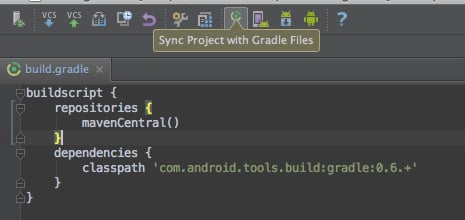
mavenCentral() as a repository in your build.gradle.
In order for the library to work you’ll need to ensure that you’re requesting the following permissions in your AndroidManifest.xml:
Java
MixpanelAPI.getInstance() with your application context, your project token, and false value for automatic events.
Java
Library Configuration
The library can be initialized with different configurations. See a complete list of the configuration options and methods underMPConfig.
You can set the library configuration by adding meta-data entries under the <application> of your app’s AndroidManifest.xml.
Example Usage
Java
MPConfig provide a few methods that you can call to set and retrieve your configuration after the library has already been initialized.
Example Usage
Java
Sending Events
Use.track() to send an event by providing the event name and any event properties. This will trigger a request to the /track API endpoint to ingest the event into your project.
The /track endpoint will only validate events with timestamps within the last 5 days of the request. Events with timestamps older than 5 days will not be ingested. See below on best practices for historical imports.
Java
Timing Events
You can track the time it took for an action to occur, such as an image upload or a comment post, using.timeEvent(). This will mark the “start” of your action, which will be timed until you finish with a track call. The time duration is then recorded in the “Duration” property.
Example Usage
Java
Flushing Events
To preserve battery life and customer bandwidth, the Mixpanel library doesn’t send the events you record immediately. Instead, it sends batches to the Mixpanel servers every 60 seconds while your application is running, as well as when the application transitions to the background. Call.flush() manually if you want to force a flush at a particular moment.
Example Usage
Java
.setFlushBatchSize() method to adjust the batch size limit for flushing.
Example Usage
Java
Importing Historical Events
The Android SDK is a tracking SDK designed for real-time tracking in a client-side environment. Calling.track() triggers a request to our /track API endpoint, which will validate for events with a timestamp that is within the last 5 days of the request. Events older than 5 days will not be ingested.
For bulk import of historical events older than 5 days, we will need to use the /import API endpoint which is optimized for scripting and supports ingesting historical data. We recommend the Python SDK (see the .import_data() function) and mixpanel-utils module (see the import_events() function) which both leverages the /import API for event ingestion.
Setting Super Properties
Super properties are global event properties that you define once and apply to all events. To register super properties, call.registerSuperProperties().
Use .registerSuperPropertiesOnce() to register super properties without overwriting existing values.
Java
Java
Managing User Identity
You can handle the identity of a user using the.identify() and .reset() methods. Learn more about identity management and identifying users.
Identify
Call.identify() when you know the identity of the current user, passing in their user ID as an argument. This is typically at account registration and at log in.
Java
Call Reset at Logout
Call.reset() to clear data attributed to a user when they logout. This will clear the local storage and allows you to handle multiple users on a single device.
Example Usage
Java
Custom Device ID Generation
The Android SDK provides aDeviceIdProvider interface for implementing custom device ID generation logic. This allows you to control where device IDs are stored and whether they persist across .reset() calls.
Configure the device ID provider using MixpanelOptions.Builder() when initializing the SDK. If the provider returns null, an empty string, or throws an exception, the SDK will fall back to generating a UUID-based device ID.
Example Usage
Java
.reset() calls. Returning different values generates a new device ID on each reset.
Java
Storing User Profiles
Once your users are identified, create user profiles by setting profile properties to describe them. Example profile properties include “name”, “email”, “company”, and any other demographic details about the user. The Android SDK provides a few methods for setting profile properties under theMixpanelAPI.People interface accessible via .getPeople(). These methods will trigger requests to the /engage API endpoint.
Setting Profile Properties
You must call
.identify() before setting profile properties in order to associate the profile properties you set with the target user. If identify is not called, the profile update will be queued for ingestion until an identify call is made..getPeople().set() method.
If a profile property already exists, it will be overwritten with the latest value provided in the method. If a profile property does not exist, it will be added to the profile.
Example Usage
Java
Other Types of Profile Updates
There are a few other methods for setting profile properties. See a complete reference of the available methods here A few commonly used people methods are highlighted below:- .setOnce()
- .append()
- .union()
- .increment()
The
.getPeople().setOnce() method set profile properties only if they do not exist yet. If it is setting a profile property that already exists, it will be ignored.Use this method if you want to set profile properties without the risk of overwriting existing data.Example UsageJava
Group Analytics
Read more about Group Analytics before proceeding. You will need to have the group key defined in your project settings first.
group_key and group_id.
group_keyis the event property that connects event data to a group. (e.g.company)group_idis the identifier for a specific group. (e.g.mixpanel,company_a,company_b, etc.)
Adding Users to a Group
All events must have the group key as an event property in order to be attributed to a group. Without the group key, an event cannot be attributed to a group. Call the.setGroup() method to register the current user to a group, which would add the group_key as an event property set to the group_id value to all events moving forward.
Example Usage
Java
group_key value as a list of multiple group_id values.
Call .addGroup() to add additional group_ids to an existing list.
Example Usage
Java
Adding Group Identifiers to User Profiles
To connect group information to a user profile, include thegroup_key and group_id as a user profile property using the .getPeople().set() call.
Example Usage
Java
Setting Group Profile Properties
Create a group profile by setting group properties, similar to a user profile. For example, you may want to describe a company group with properties such as “ARR”, “employee_count”, and “subscription”. To set group profile properties, specify the group that needs to be updated by calling.getGroup(), then set the group properties by chaining the .set() method, which will trigger a request to the /groups API endpoint.
Example Usage
Java
Other Group Profile Methods
See all of the methods under the Group class here. A few commonly used group methods are highlighted below:- .setOnce()
- .unset()
- .union()
- .remove()
The
.getGroup().setOnce() method set group profile properties only if they do not exist yet. If it is setting a profile property that already exists, it will be ignored.Use this method if you want to set group profile properties without the risk of overwriting existing data.Example UsageJava
Session Replay
Install the Session Replay SDK for Android to record replay data. Learn more about Session Replay and implementing Session Replay on Android.Debugging and Logging
Enable SDK logs
To enable debug mode, add the following permission within yourAndroidManifest.xml inside the <application> tag:
Java
Network Failover
Configure a backup host for automatic failover when the primary API endpoint is unreachable. The default primary endpoint isapi.mixpanel.com (or your configured custom endpoint for EU/India data residency or proxy server). This can be used as a troubleshooting fallback when network calls to the Mixpanel endpoint are blocked or unreachable.
Setup
Java
- Network failures (connection timeout, DNS errors)
- Non 4xx HTTP status codes
- Client errors (HTTP 4xx) - indicates invalid request
- Successful responses (HTTP 200 OK)
- Parse errors
- Support the same API endpoints (
/track/,/engage/,/groups/) - Accept the same authentication mechanism as the primary host
- Use the same URL scheme and port as configured for the primary host
Privacy-Friendly Tracking
You have control over the data you send to Mixpanel. The Android SDK provide methods to help you protect user data. Learn more about Privacy.Opt Out of Tracking
The Android SDK is initialized with tracking enabled by default. Use the.optOutTracking() method to opt the user out of data tracking and local storage for the current Mixpanel instance.
Example Usage
Java
optOutTrackingDefault configuration. Once the user is ready to be tracked, call .optInTracking() to start tracking.
Example Usage
Java
EU Data Residency
Route data to Mixpanel’s EU servers by setting theserverURL to https://api-eu.mixpanel.com during initialization using MixpanelOptions.
Setting
serverURL during initialization ensures all requests (events, profiles, and feature flags) use the correct endpoint from the start.Java
<meta-data> tags in your AndroidManifest.xml under the <application> tag:
Java
India Data Residency
Route data to Mixpanel’s India servers by setting theserverURL to https://api-in.mixpanel.com during initialization using MixpanelOptions.
Setting
serverURL during initialization ensures all requests (events, profiles, and feature flags) use the correct endpoint from the start.Java
<meta-data> tags in your AndroidManifest.xml under the <application> tag:
Java
Disable Geolocation
The Android SDK parse the request IP address to generate geolocation properties for events and profiles. To disable geolocation, add the following meta-data entry under the<application> tag of your app’s AndroidManifest.xml.
Java
App Links Tracking
The Mixpanel library has built in support for tracking in-bound and out-bound App Links. App Links is a specification to help standardize deep-linking between apps as well as give you additional information about how users are getting to and from your own mobile app. In order for Mixpanel to track App Links, your app must satisfy the following dependencies:- Bolts Framework >= v1.1.2
- Android Support Library v4+.
If your application does not meet these requirements, the Mixpanel library will log debug messages about App Links tracking not being enabled. This is NOT an error and can be safely ignored.
$al_nav_in event with meta information about where they came from.
Tracking Out-bound App Links
If you’re linking to other applications using the Bolts framework, Mixpanel will track a $al_nav_out event with additional meta information about where the user is being linked to.
Java
Tracking Via Proxy
This guide demonstrates how to route events from Mixpanel’s Android SDKs via a proxy in your own domain. This is useful to reduce the likelihood of ad-blockers impacting your tracking. There are two steps: setting up a proxy server and pointing the SDK at your server. Step 1: Set up a proxy server The simplest way is to use our sample nginx config. This config redirects any calls made to your proxy server to Mixpanel. Step 2: Point Android SDK at your server Add the following line, replacingYOUR_PROXY_DOMAIN with your proxy server’s domain.
Example Usage
Backup Host
When you set a backup host, the SDK will first attempt to send data to the primary Mixpanel endpoint. If this request fails, the SDK will then automatically retry the request using the specified backup host. The SDK will use the same URL path, protocol (HTTP/HTTPS), and query parameters as the original request, only replacing the primary host portion of the URL with the backup host. Example Usage via SDKAndroidManifest.xml:
Java
Legacy Automatically Tracked Events
Mixpanel’s SDKs have a legacy feature to automatically collect common mobile events. We don’t recommend enabling this, as these events rely on client-side state and can be unreliable. Unlike the Swift SDK — wheretrackAutomaticEvents is an optional parameter that defaults to false — the Android SDK requires trackAutomaticEvents as an explicit, required parameter on every MixpanelAPI.getInstance() overload. There is no passive default at the call site; you must pass true or false when you initialize.
Note: As of Android SDK v7.0.0, trackAutomaticEvents became a required parameter. This change removed the previous server-side API call that fetched the Autotrack setting, so the behavior is now controlled entirely in your initialization code rather than from project settings.
See the table below for the automatic events tracked by the Android SDK when trackAutomaticEvents is enabled:
Differences from the Swift SDK
The set of automatic events is not identical across platforms:$ae_crashedis tracked on Android only. The Swift SDK does not track app crashes automatically.$ae_iap(In-App Purchase) is tracked on iOS only. The Android SDK does not track in-app purchases automatically. If you need IAP tracking on Android, implement it manually withtrack()calls.
Configuring the Session Threshold
By default, the App Session ($ae_session) event fires only when a session lasts at least 10 seconds. You can change this minimum through AndroidManifest.xml metadata (value in milliseconds):